-
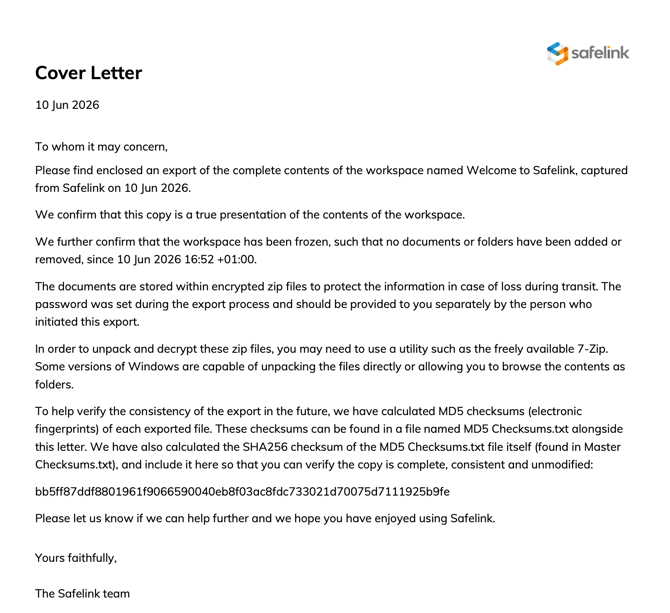
To begin, click Manage Workspace.
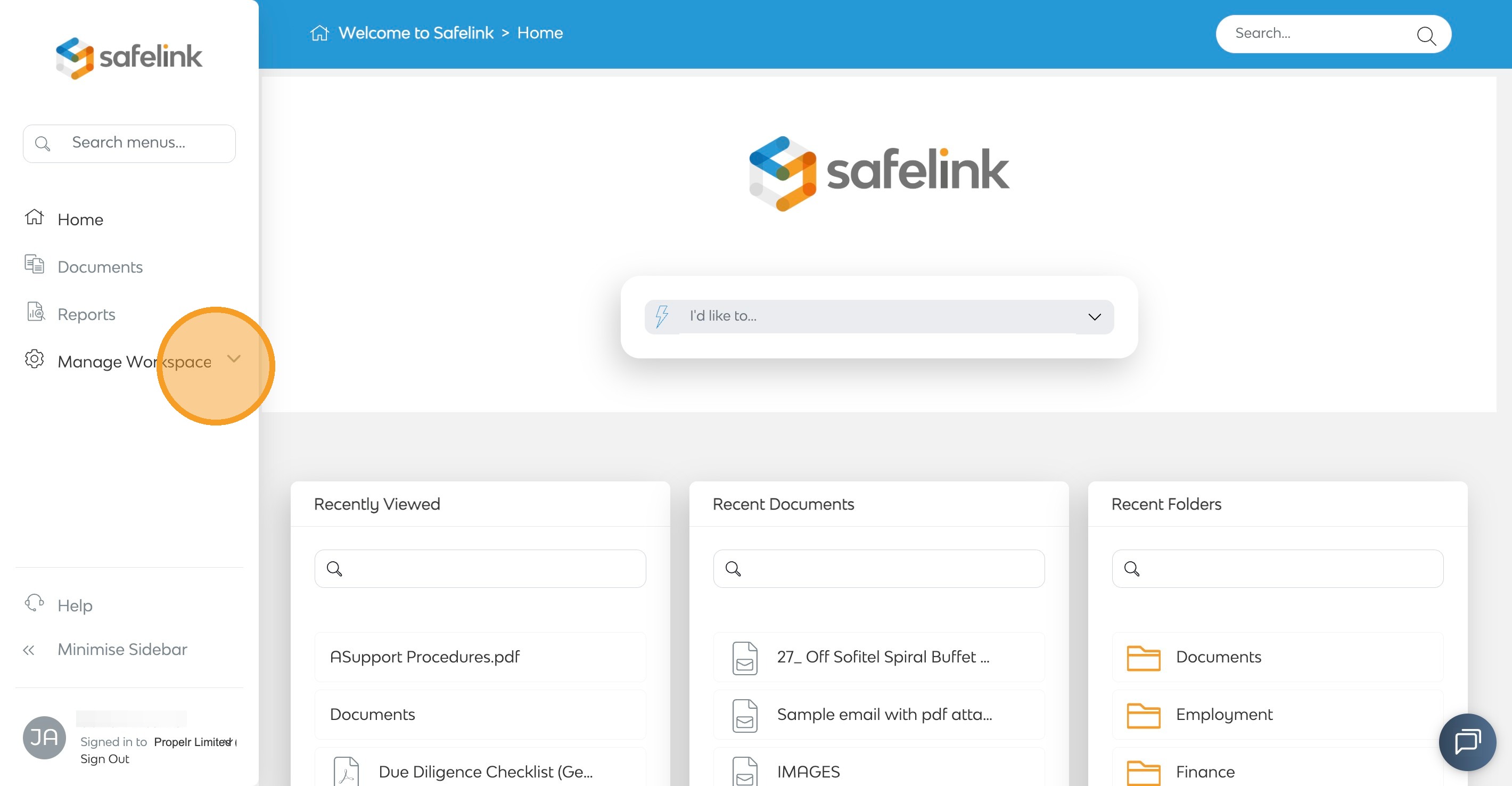
- Click Reports.
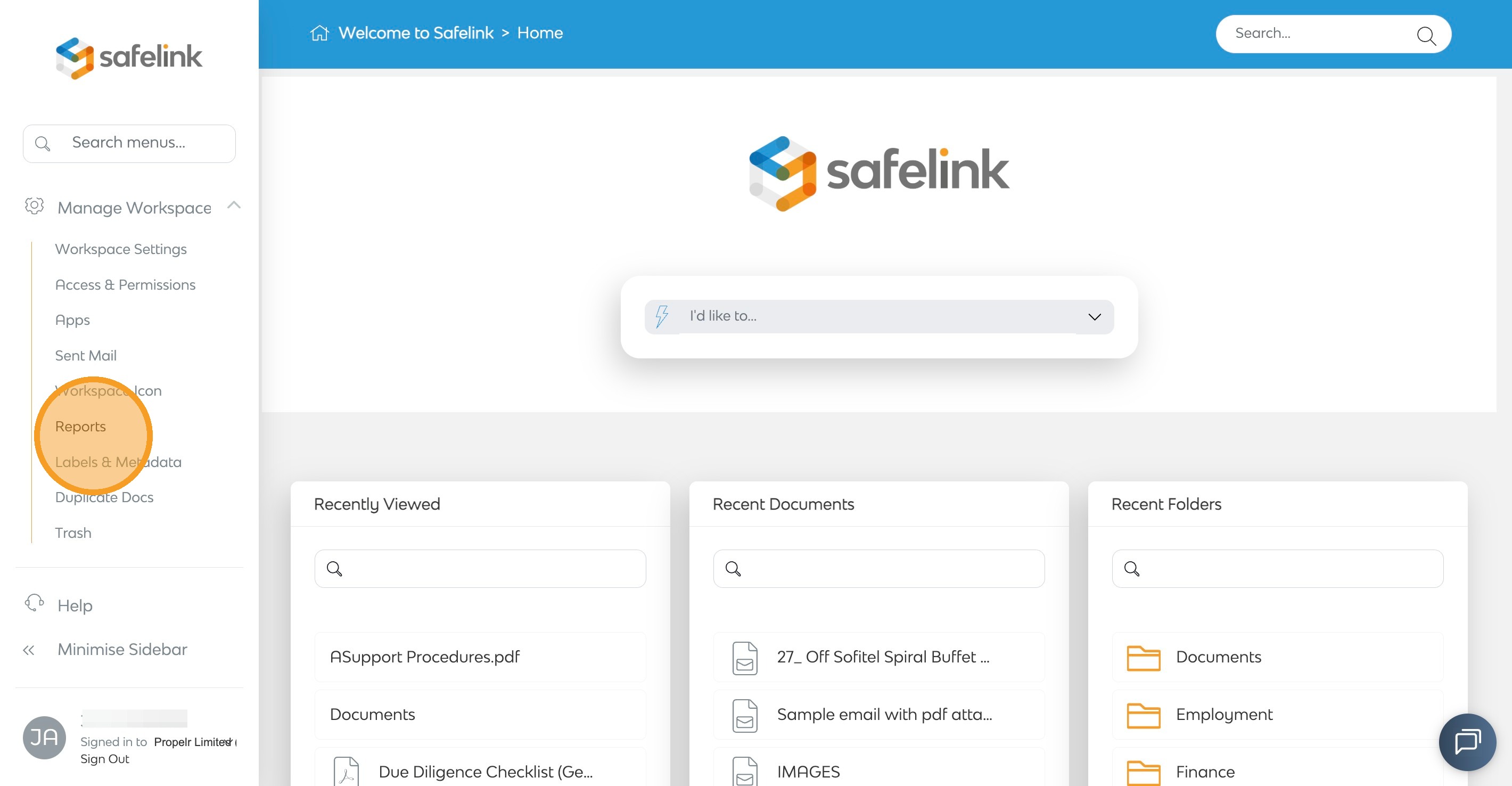
- Click Run Report.
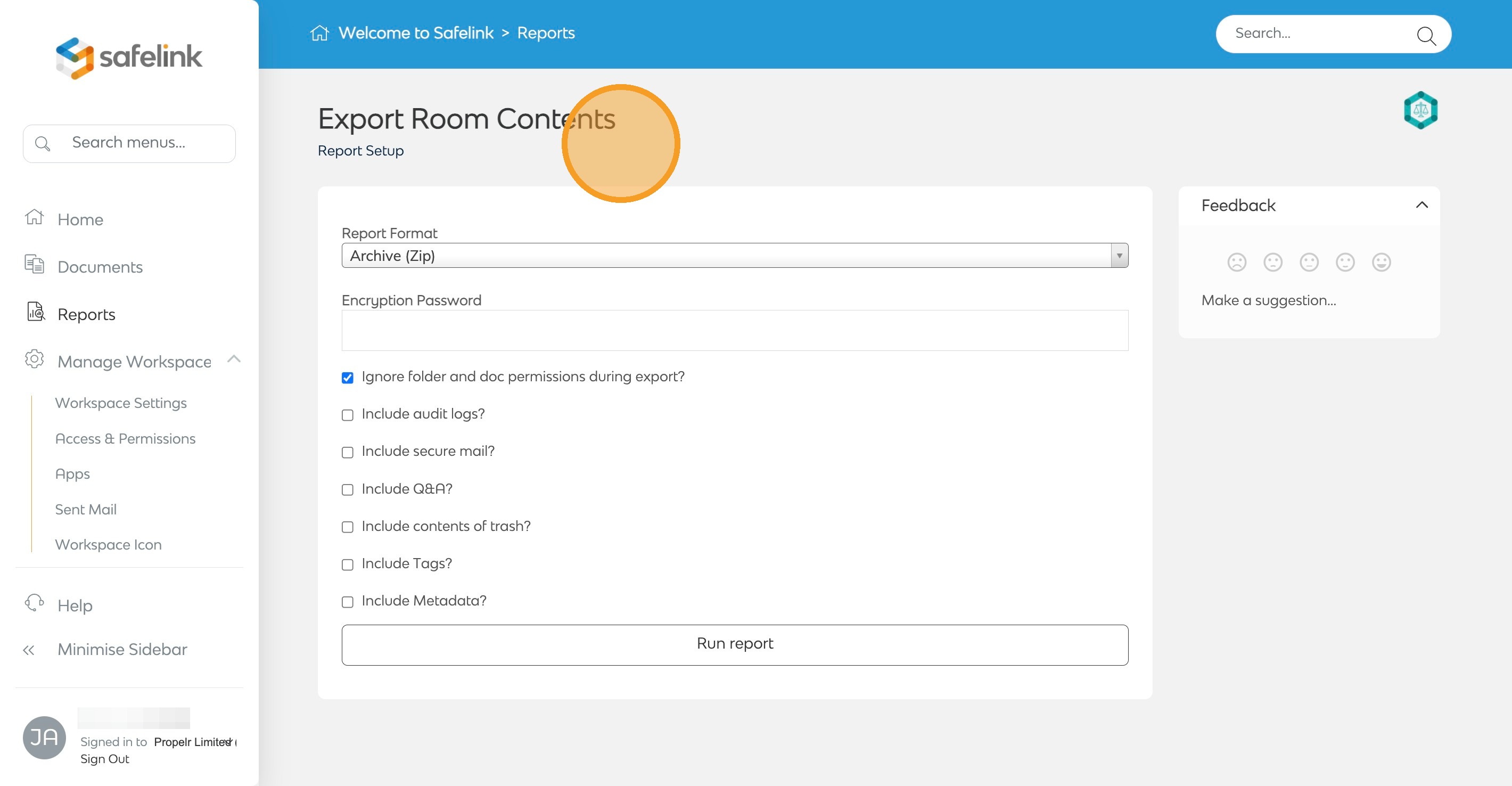
- In the report setup, you can choose which options and items to include in the export.
- Encryption Password: Optionally protect the exported file with a password for enhanced security.
- Ignore Folder and Document Permissions: When enabled, all room or workspace content is exported regardless of individual folder or document permission settings.
- Include Audit Logs: Includes a complete audit trail of all actions and changes that occurred within the room or workspace.
- Include Secure Mail: Includes all secure mail messages exchanged within the room.
- Include Q&A: Includes all questions, answers, and related discussions from the Q&A application.
- Include Contents of Trash: Includes items that have been deleted and are currently stored in the Trash folder.
- Include Tags: Includes all tags and labels applied to documents and folders.
- Include Metadata: Includes document metadata.
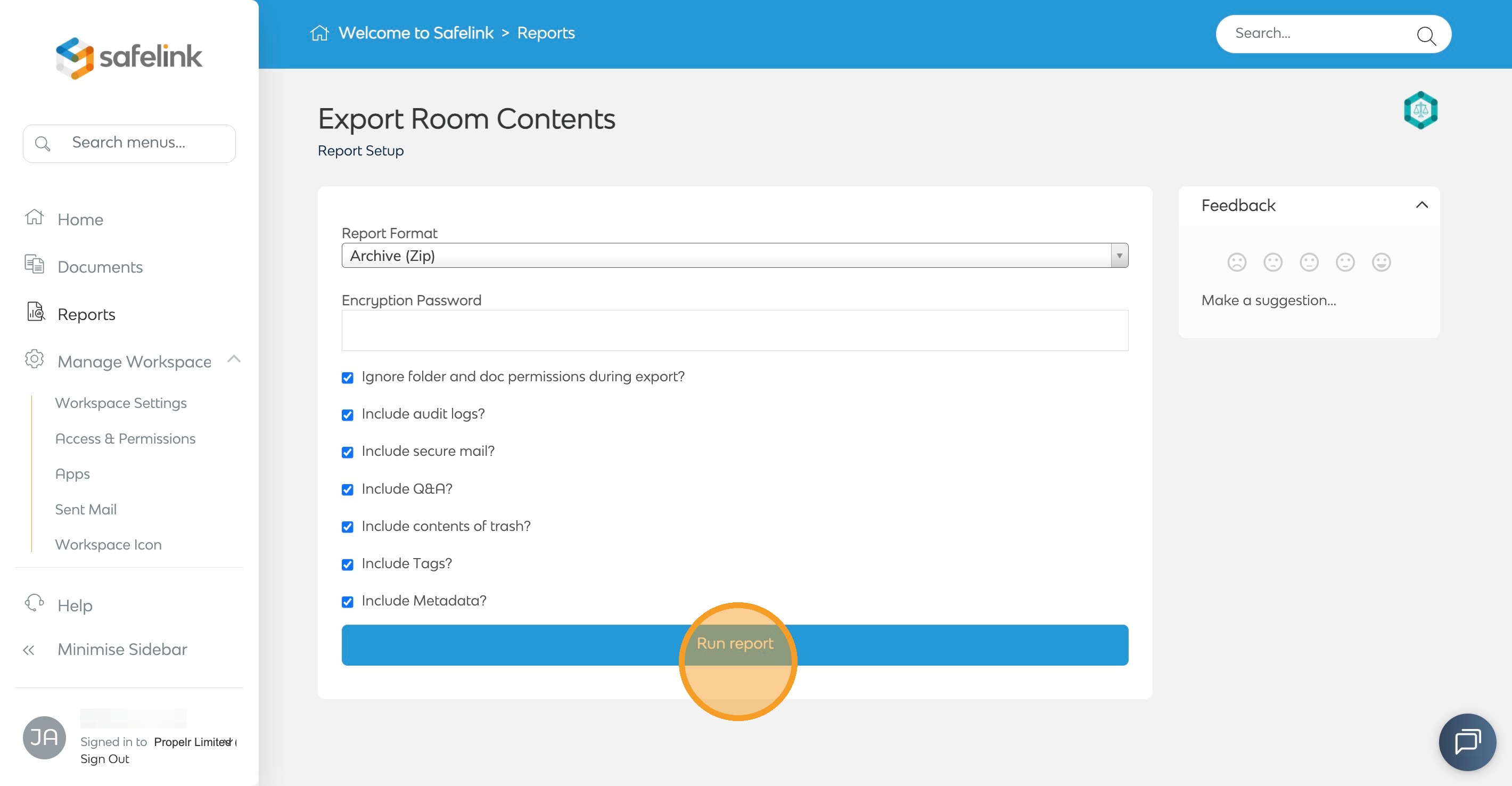
- After selecting the items to include in the export, click Run Report to start the export.
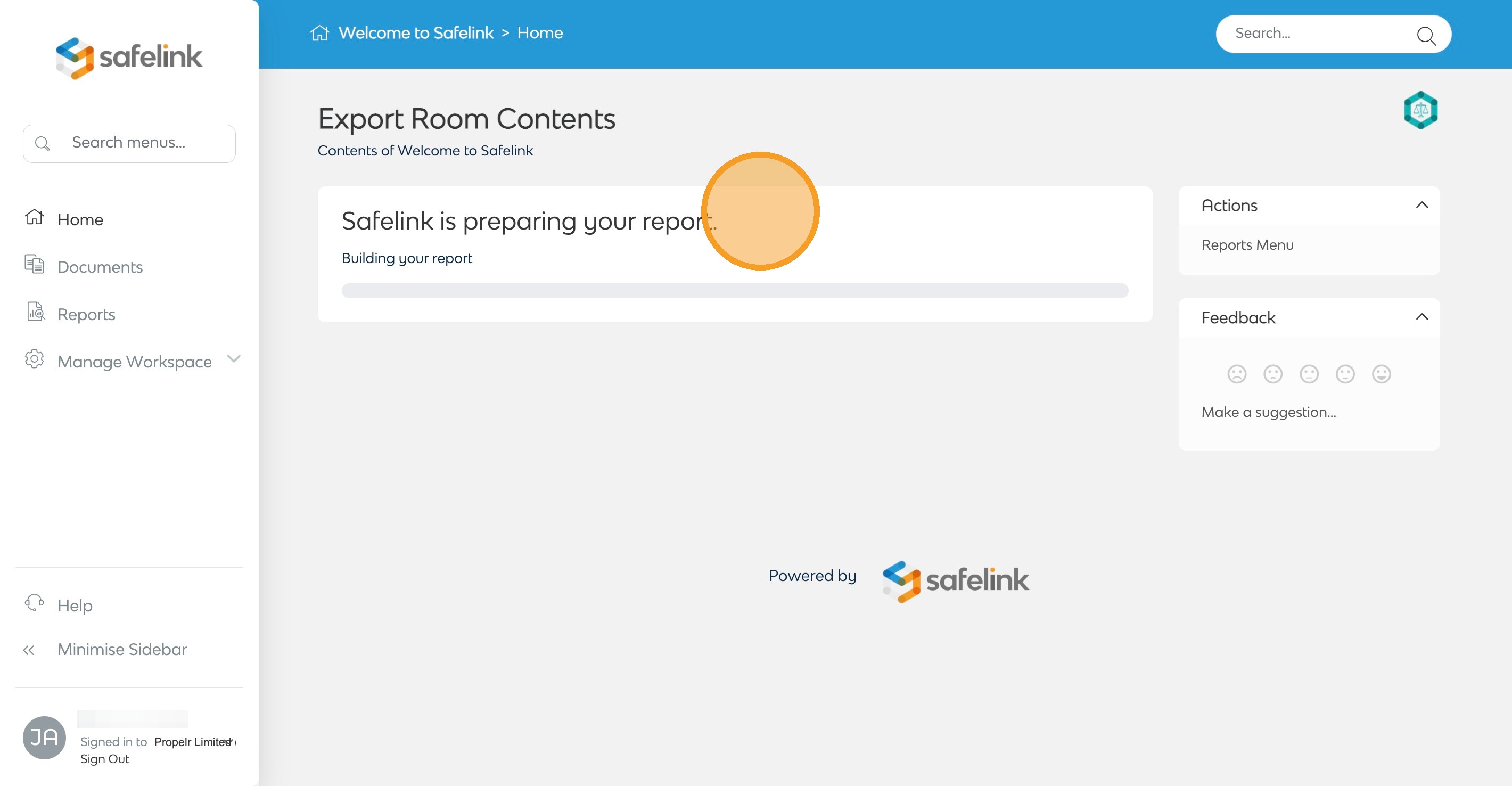
- Safelink will prepare your report to download.
- Lastly, click Download Report.
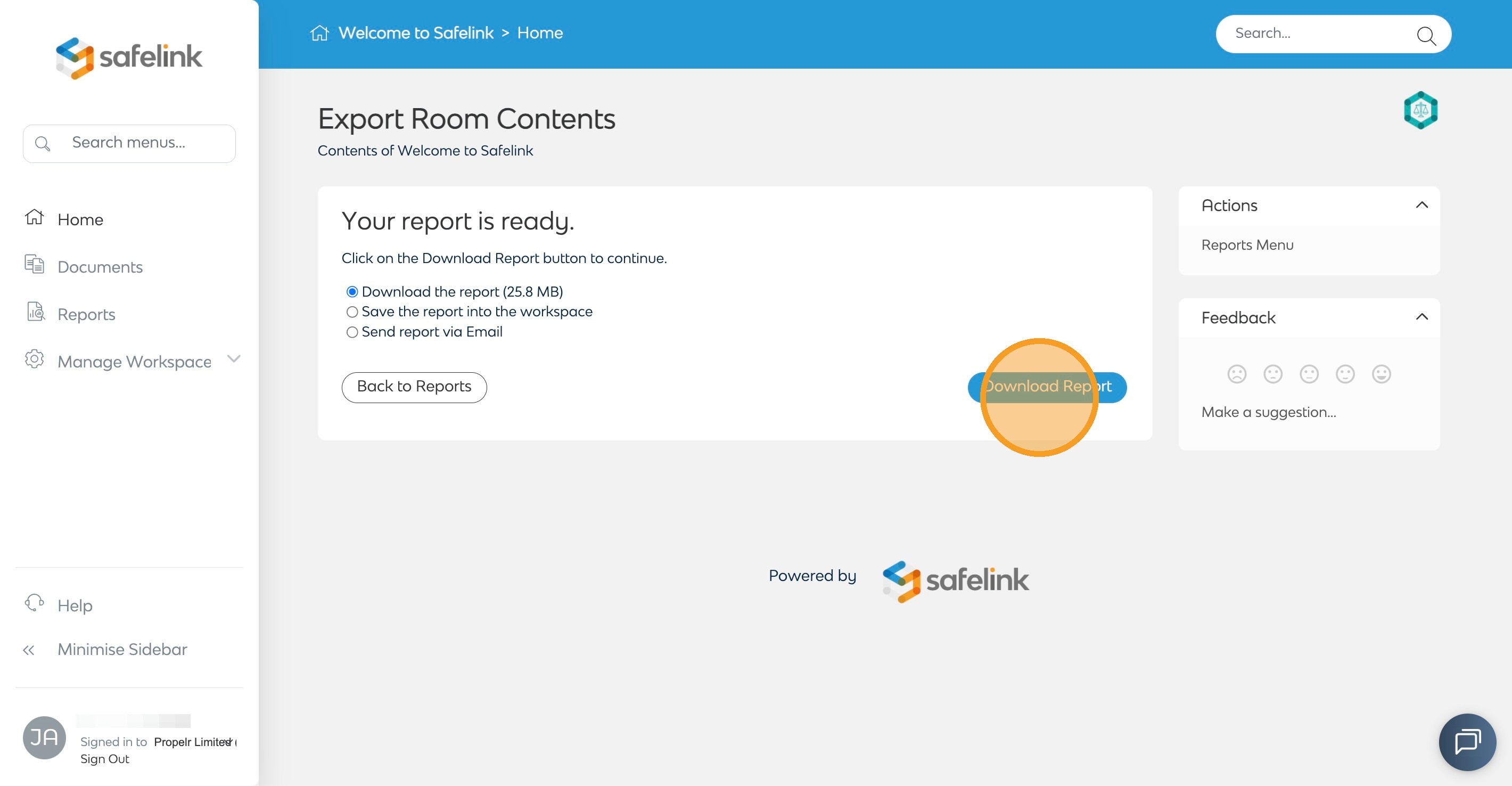
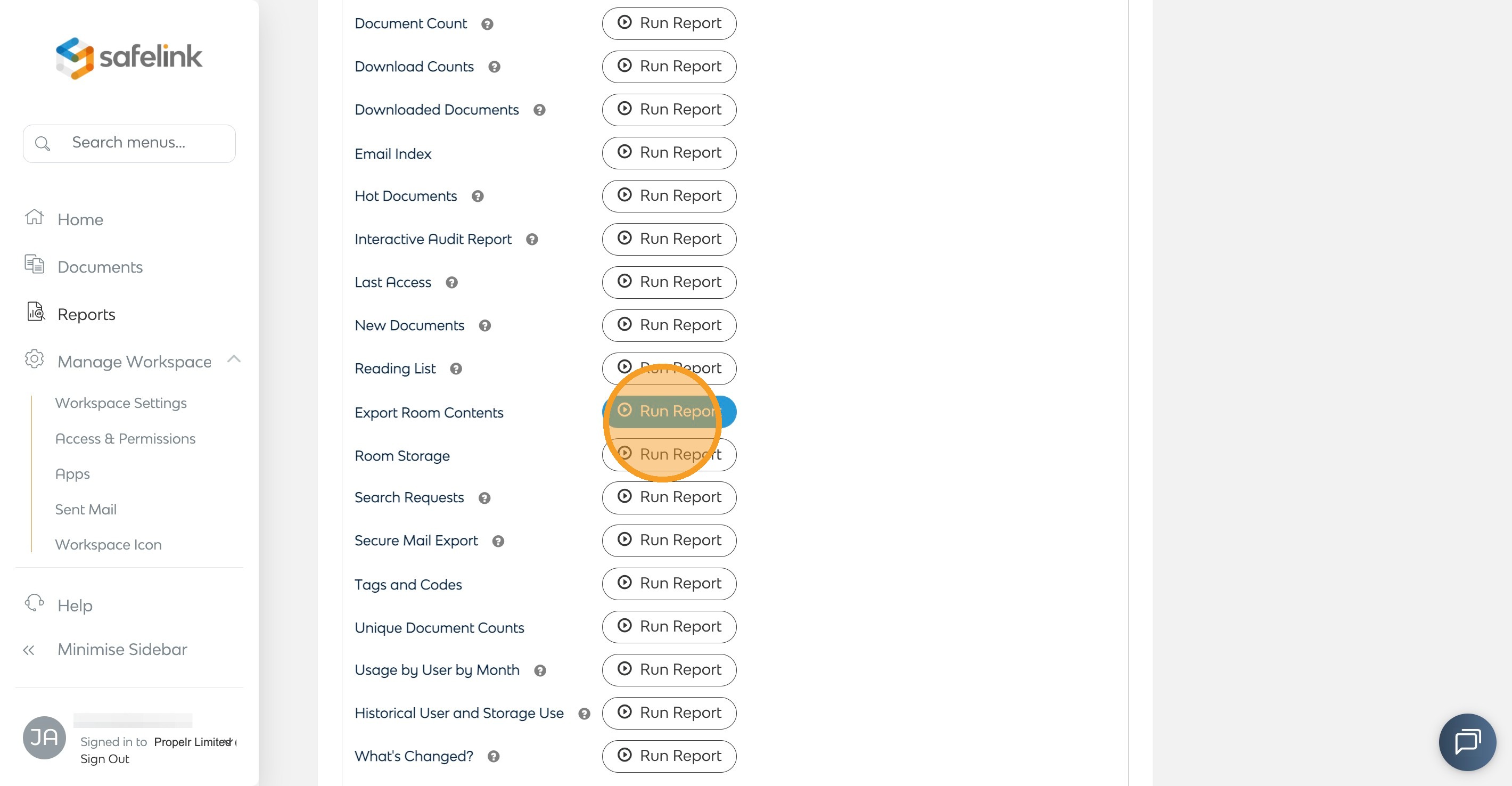
- A ZIP file will be downloaded to your computer. The ZIP file will contain all documents and folders, the document index, and any other items you selected in the report setup.
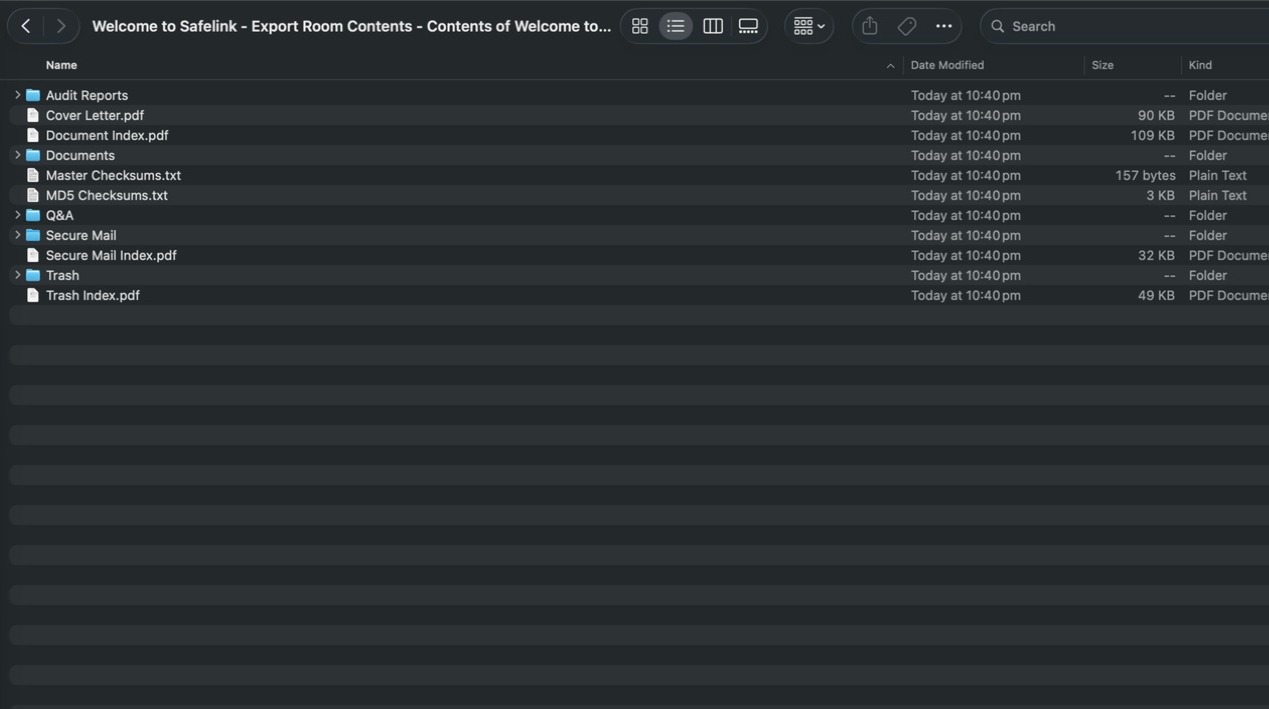
- When you run the Export Room Contents, a Cover Letter (PDF) is automatically included in the ZIP file. This document contains the data room name, the date of the export, and a SHA256 checksum for verification purposes. Where applicable, it also notes if the workspace was frozen (read-only), including the corresponding date and time.