-
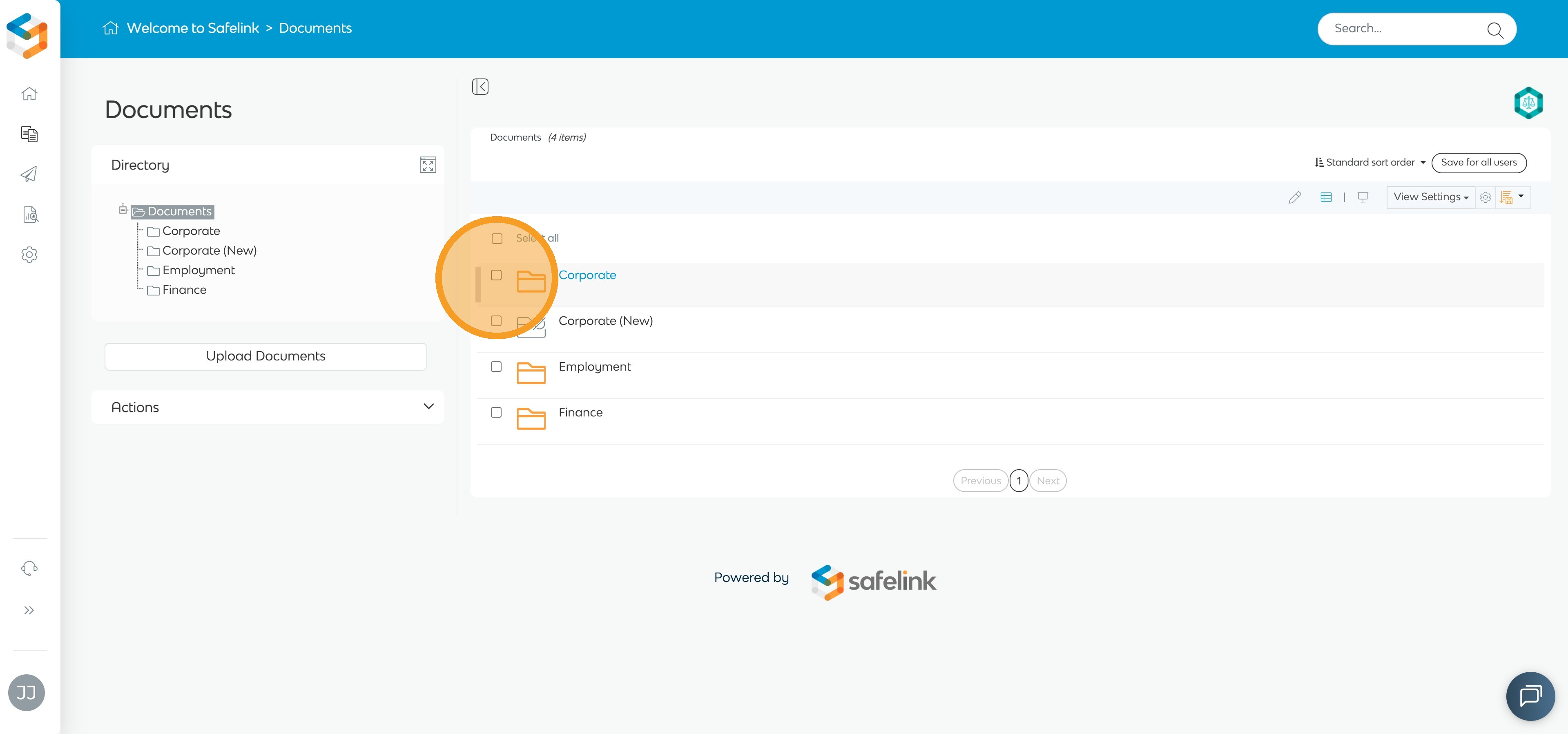
In the Documents area, tick the checkbox next to the file or folder you wish to copy.
-
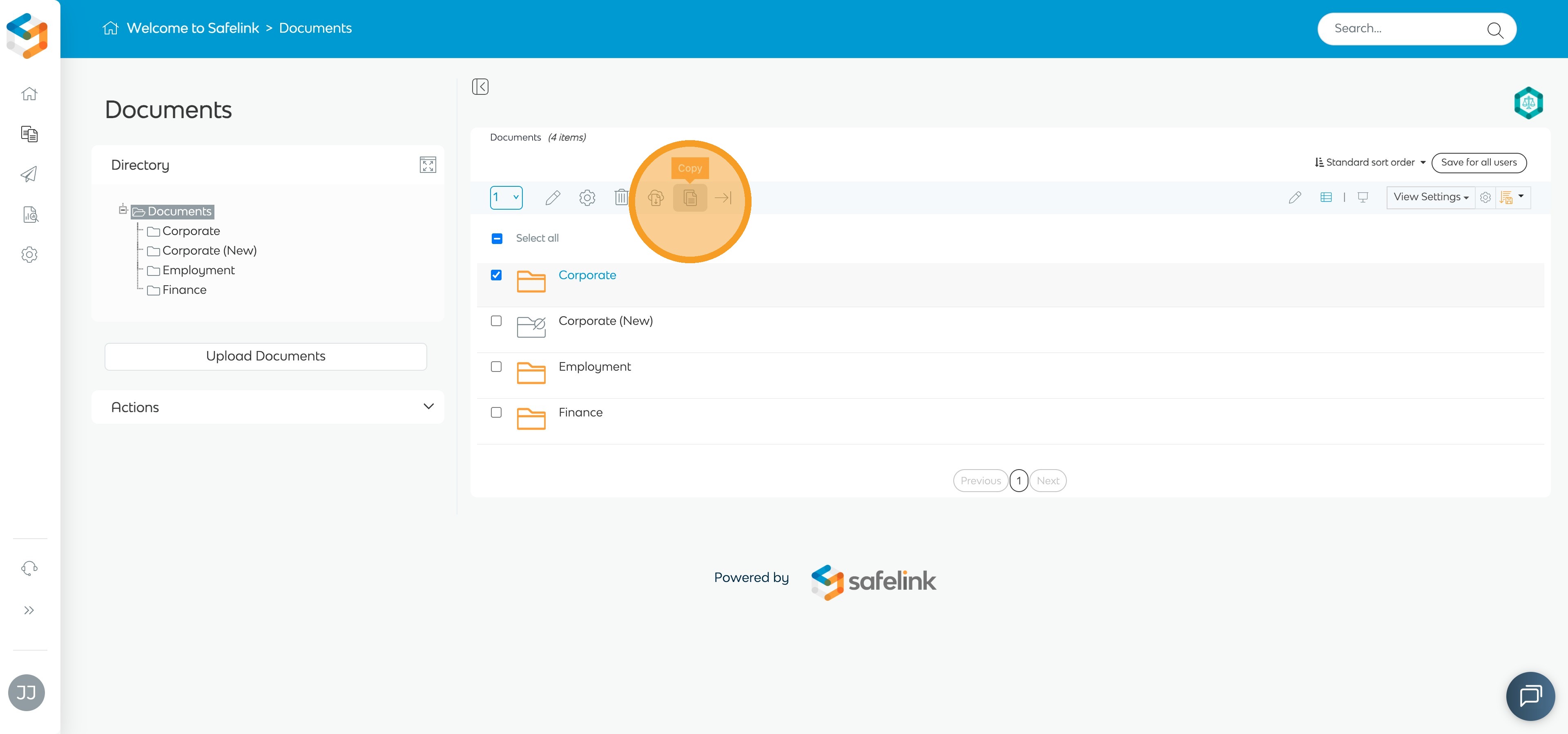
Click the Copy button in the Actions toolbar.
-
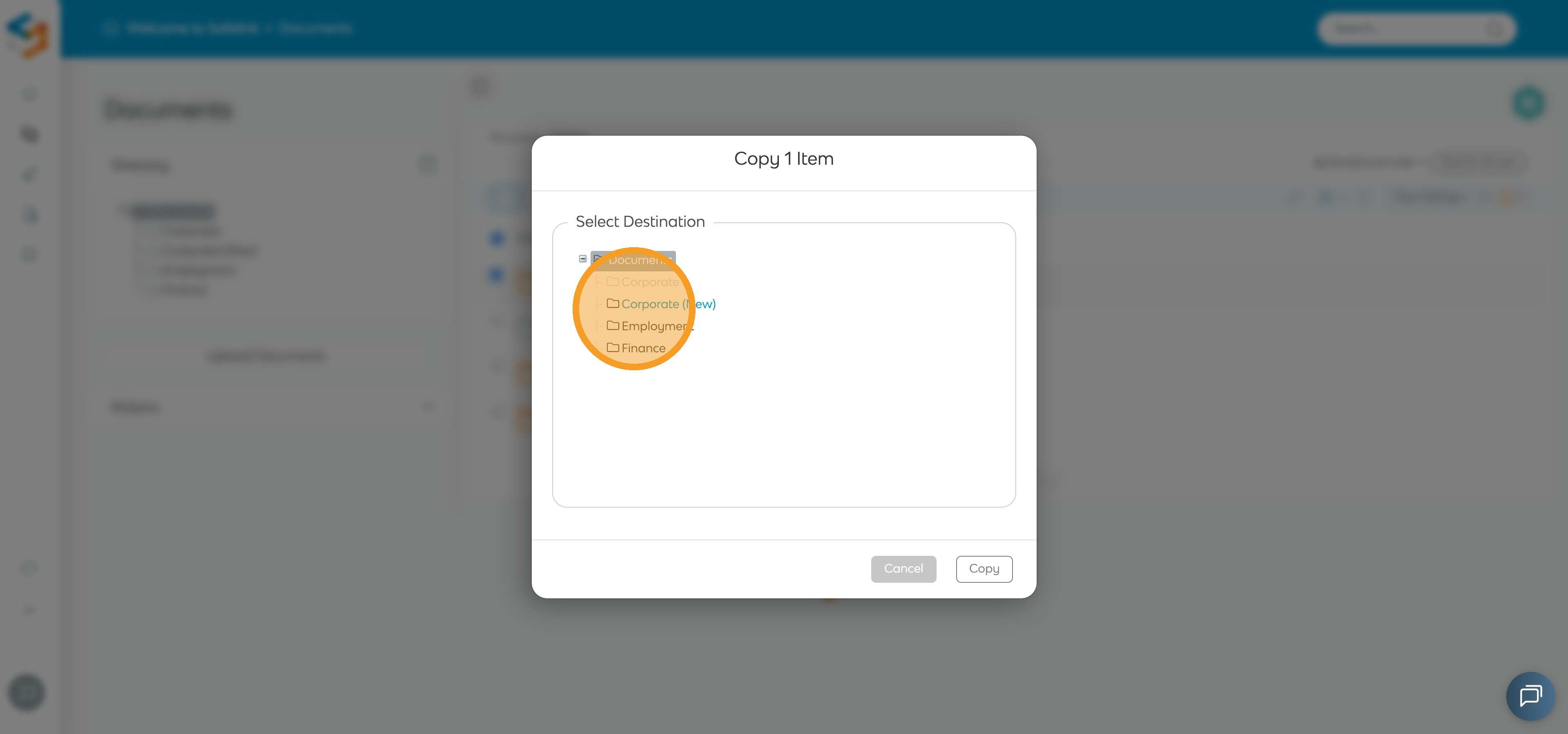
In the Copy modal, select the folder where you would like the copied item to be placed.
-
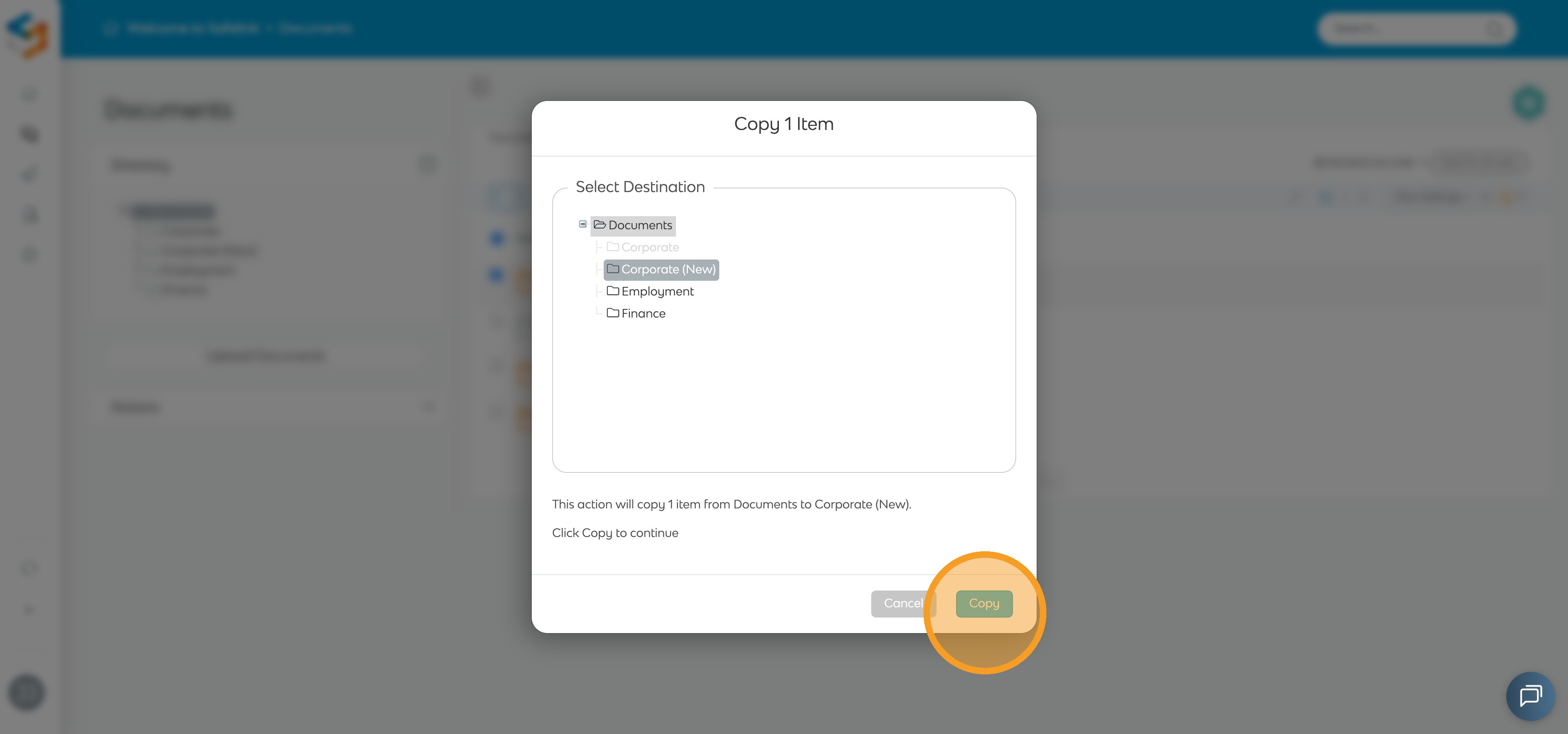
Click Copy to confirm and complete the process.
-
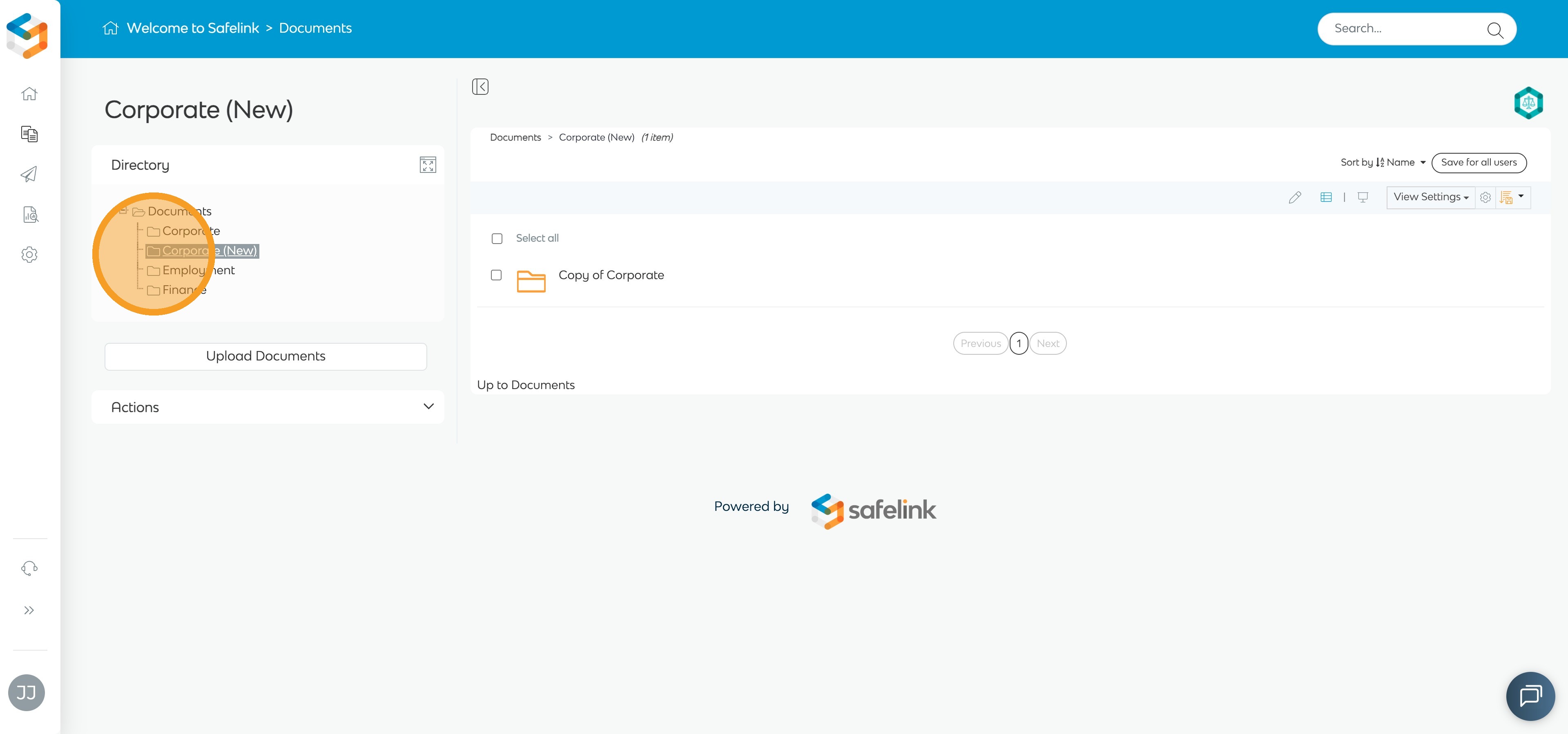
Open the destination folder to view the copied document or folder. Copied folders or documents will display the prefix “Copy of” in their name.
English